Hi all, recently I tried Solaris for some tasks at work. Installing Solaris on VirtualBox was not so difficult and there were quite a few resources in the internet. I used the following. http://thegeekdiary.com/installing-oracle-solaris-11-in-virtualbox/
However for configuring the network it was not the same. So here I will note down a few things which I believe might be useful when configuring network for Solaris 11 in Virtual Box.
In Solaris 11 configuring network is not editing few files, unlike in most other operating systems. There are a set of commands we can to create those configurations for us.
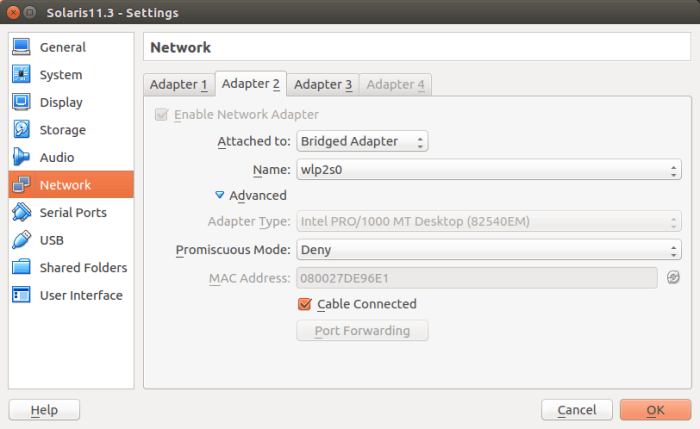
We will go through configuring NAT, HostOnly and Bridged Adaptors. First we have to go to Setting for the Solaris VM in VirtualBox and from there to the Network Tab.
Even though eventually we will add three network adaptors, I suggest we start by enabling only one adaptor as it might be hard to figure out which is which inside Solaris one we enable several network adaptors at once and try to configure them inside Solaris.
Configuring Bridge Adaptor
So to start with let’s turn on BridgedAdaptor. Make sure you press OK and save the changes. Now start up the VM and log-in.
Solaris 11 has this concept of “Network Configuration Profiles (ncp)”. There is
1. Automatic – Uses DHCP to obtain network configuration (IP address, router and DNS) from any of the connected ethernet interfaces. Do not support hot swapping of interfaces and IPMP.
2. Manual (DefaultFixed NCP) – interfaces needs to be manually configured using dladm and ipadm commands. Also called as DefaultFixed NCP. Supports hot swapping of interfaces and IPMP.
We want to use Manual profile. You can get a list of these by “netadm list” (network administration) command.

In the about output we can see “Automatic” is disabled and “DefaultFixed” is online. This is because I have already enabled it when installing Solaris. So if you don’t have DefaultFixed online run following commands.
netadm disable -p ncp Automatic
netadm enable -p ncp DefaultFixed
Now let’s run “dladm” (data link administration) command. You will see something similar to following.

Now we have to create IP configuration and for that we use “ipadm” (IP administration) command.
ipadm create-ip net0
Here net0 is the name I have given for IP configuration. You can use the LINK name you got as the output of “dladm” command.
To configure the configuration we created. Following command can be used.
ipadm create-addr -T static -a local=192.168.1.190/24 net0/v4
-T specifies either static, dhcp or addrconf (for IPv6) types of addresses.
-a specifies address
v4 is used to denote IP v4 but it can be any random string used to identify the interface.
Note that as we are configuring BridgedAdaptor we need a public IP for this interface and we are making it static.
To view the configurations following command can be used.
ipadm show-addr
That is about it for BridgeAdaptor configuration.
Configuring Route
Now we have to configure routes. To view routes run “route -p -n show”.
To add default route,
route -p add default 192.168.1.1
If you want to delete a mistakenly added route you can use a command like
route -p delete default 192.168.1.100
Now you must be able to ping to this VM within the network.
Configuring HostOnly Adaptor
Configuring HostOnly Adaptor is similar to configuring BridgeAdaptor. You have to enable that from the VirtualBox setting first and then inside the VM you will be able to identify the newly added data link by “dladm” command. So you can configure that. Only difference would be that you will have to use an IP in 192.168.56.xxx range as it is the default range for VirtualBox host only IPs.
Configuring NAT
Configuring NAT has a slight difference. That is for NAT we will be using dhcp and not static. So command for configuring IP address is different.
ip-adm create-addr -T dhcp net2/v4
Configuring DNS
Adding DNS name server
rajind@solaris:~# svccfg -s dns/client
svc:/network/dns/client> setprop config/nameserver = (8.8.8.8 8.8.4.4)
svc:/network/dns/client> listprop config
config                      application
config/value_authorization astring     solaris.smf.value.name-service.dns.client
config/nameserver          net_address 8.8.8.8 8.8.4.4
svc:/network/dns/client> exit
rajind@solaris:~#


rajind@solaris:~# svcadm refresh dns/client
rajind@solaris:~# svcadm restart dns/client
Setting name service switch
rajind@solaris:~# svccfg -s name-service/switch
svc:/system/name-service/switch> setprop config/host = "files dns"
svc:/system/name-service/switch> listprop config
config                      application
config/default             astring     files
config/value_authorization astring     solaris.smf.value.name-service.switch
config/printer             astring     "user files"
config/host                astring     "files dns"
svc:/system/name-service/switch> exit
rajind@solaris:~#

rajind@solaris:~# svcadm refresh name-service/switch
rajind@solaris:~# svcadm restart name-service/switch
References
Many thanks to the authors of these blog posts.
http://thegeekdiary.com/how-to-configure-an-ip-address-in-solaris-11/
http://thegeekdiary.com/installing-oracle-solaris-11-in-virtualbox/
https://w3hol.wordpress.com/2011/12/29/setting-static-ip-address-on-solaris-11/
That concludes this post. Cheers!
~Rajind Ruparathna

 Notebook
Hi. Seems only “more complicated” only if you specifically want to set static IP information. I use dynamic IP config via DHCP from VB even in bridged mode, and all works fine without touching anything. For my part, I only do static configuration on servers systems, but not on desktop/VB VM…
LikeLike
I agree with you Julien. Using DHCP is the easiest. I actually wanted to set a static IP and hence did this as a learning exercise.
LikeLike
bridge adaptor was all i needed!
LikeLike
Very nice postt
LikeLike